
How to Add Deceased Loved One to Photo for Free: 4 Best AI Tools & Step-by-Step Guide
By Liam Vance, Senior Image Processing Engineer
Some family photos always feel incomplete. You look at a wedding portrait, a family reunion, or a graduation shot, and the first thing you notice isn't who is in the picture, but who is missing. Today, smart AI tools make it possible to bridge this generational gap online for free, helping you create a unified family portrait.
⚡ TL;DR: Quick Executive Summary
To add a deceased relative to a photo, you basically have two choices:
- The Manual Way (Canva/FlexClip): Best if you want precise, hands-on control. You must manually erase backgrounds and balance lighting yourself.
- The Automatic AI Way (ImageCombiner AI): Best if you want a natural, lifelike look without the hassle. AI photo blending technology automatically analyzes light directions, matches the vintage paper grain, and adds soft shadows under their feet.
No credit card required · Instant Preview
Why Is This Deceptively Harder Than It Looks?
Most quick internet tutorials suggest simply cutting a person out of one photo and pasting them into another. In my work as an image processing engineer, I have seen that a simple copy-and-paste always looks unnatural.
To make a memorial photo look comforting and real, we have to solve three common visual problems:
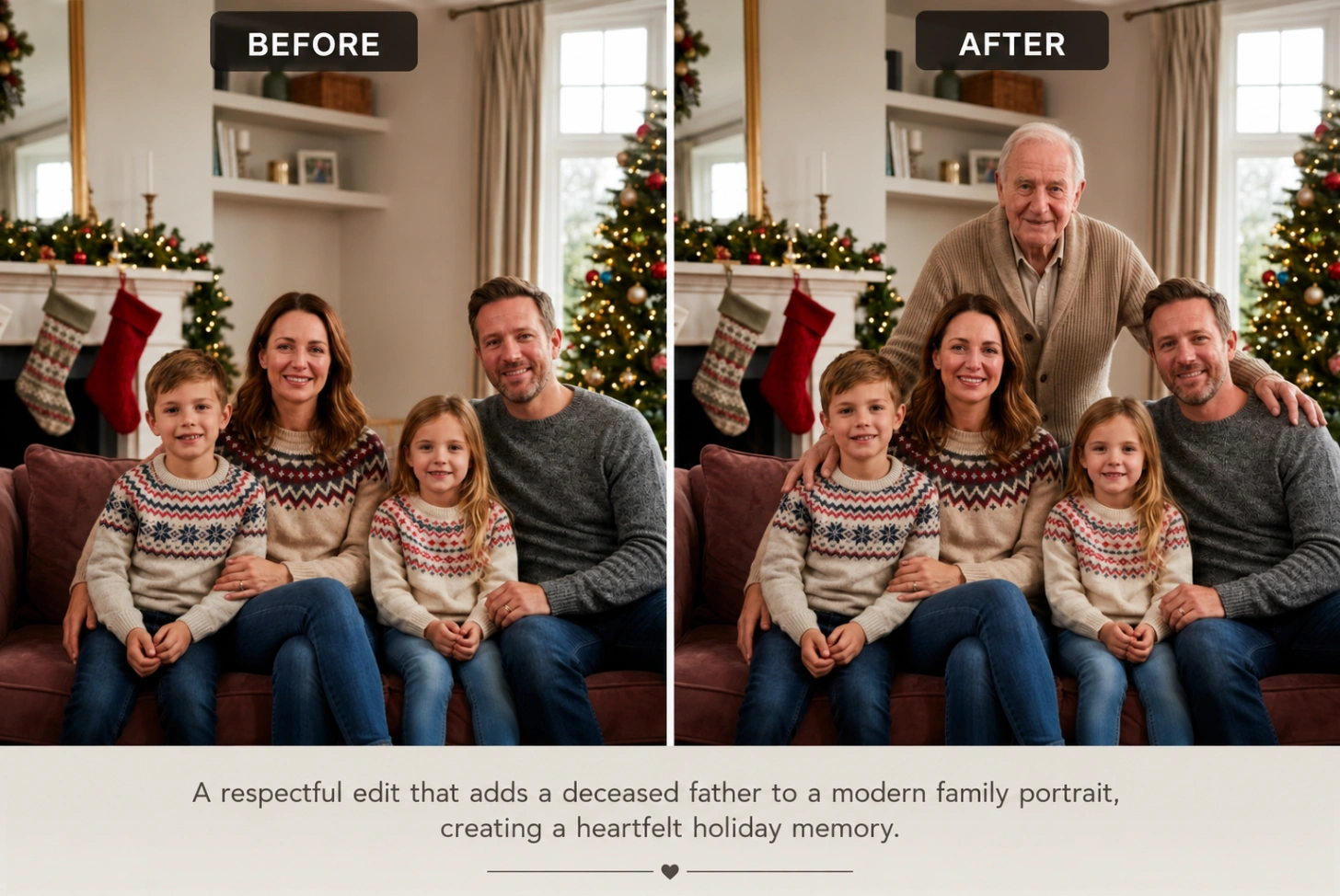
1. The Texture Clash (Smooth Phone vs. Grainy Paper)
Think of your base family photo: it was likely taken on a modern smartphone, making it ultra-sharp and clean. Your relative's photo, however, might be a scanned 1980s print made of paper grain or tiny printed ink dots.
- The Issue: If you paste them together without matching the textures, you'll immediately spot the mismatch, making your loved one look like a flat sticker.
- How AI solves this: AI photo blending technology analyzes the original paper texture and carefully blends the modern digital sharpness with the vintage film grain so they look like they were printed on the exact same piece of paper.
2. Mismatched Lighting (Warm Sunlight vs. Cold Flash)
Imagine your family is standing in warm, golden afternoon sunlight, but your grandfather’s portrait was taken indoors under a bright, cold camera flash.
- The Issue: If you merge them directly, your grandfather will look like he is glowing or standing in a different room.
- How AI solves this: The AI automatically matches the colors, temperature, and warmth of the light between both photos. It also calculates where the sun is in the main photo, casting a soft, realistic shadow at your relative's feet in the exact same direction as everyone else's.
3. The "Artificial AI" Look (True Faces, Not Puppets)
Many generic face-swap apps smooth out every wrinkle, alter smiles, or change a person's eyes, making them look plastic, robotic, or completely unrecognizable.
- The Issue: When creating a memorial photo, you do not want an AI cartoon, you want the authentic, heartwarming face you remember.
- How AI solves this: Instead of "drawing" a new face, the AI maps and locks onto the exact facial shape, natural expressions, and wrinkles of your loved one, ensuring their true identity remains completely untouched.
4 Best Tools to Add Deceased Loved Ones to Photos Free Online
To provide an objective comparison, I evaluated over 15 vintage and modern photo combinations across these four tools. Here is how they stack up in terms of blend realism:
1. ImageCombiner AI (Best for Automated Realism)
This Add Deceased Loved One to Photo AI tool automates the complex math of spatial alignment and light temperature balancing.
- Platform: Web-based (Compatible with both desktop and mobile browsers).
- Best For: Fast, high-resolution outputs (up to 4K) ready for physical framing.
- Pros: It uses a face-preservation algorithm that maps facial landmarks without distortion. It also matches the film grain of the older scan to the modern base canvas automatically.
- Cons: If the source photo of your relative is extremely blurry or heavily pixelated, you will need to fix it first using the AI Unblur Image tool to restore the missing details accurately.
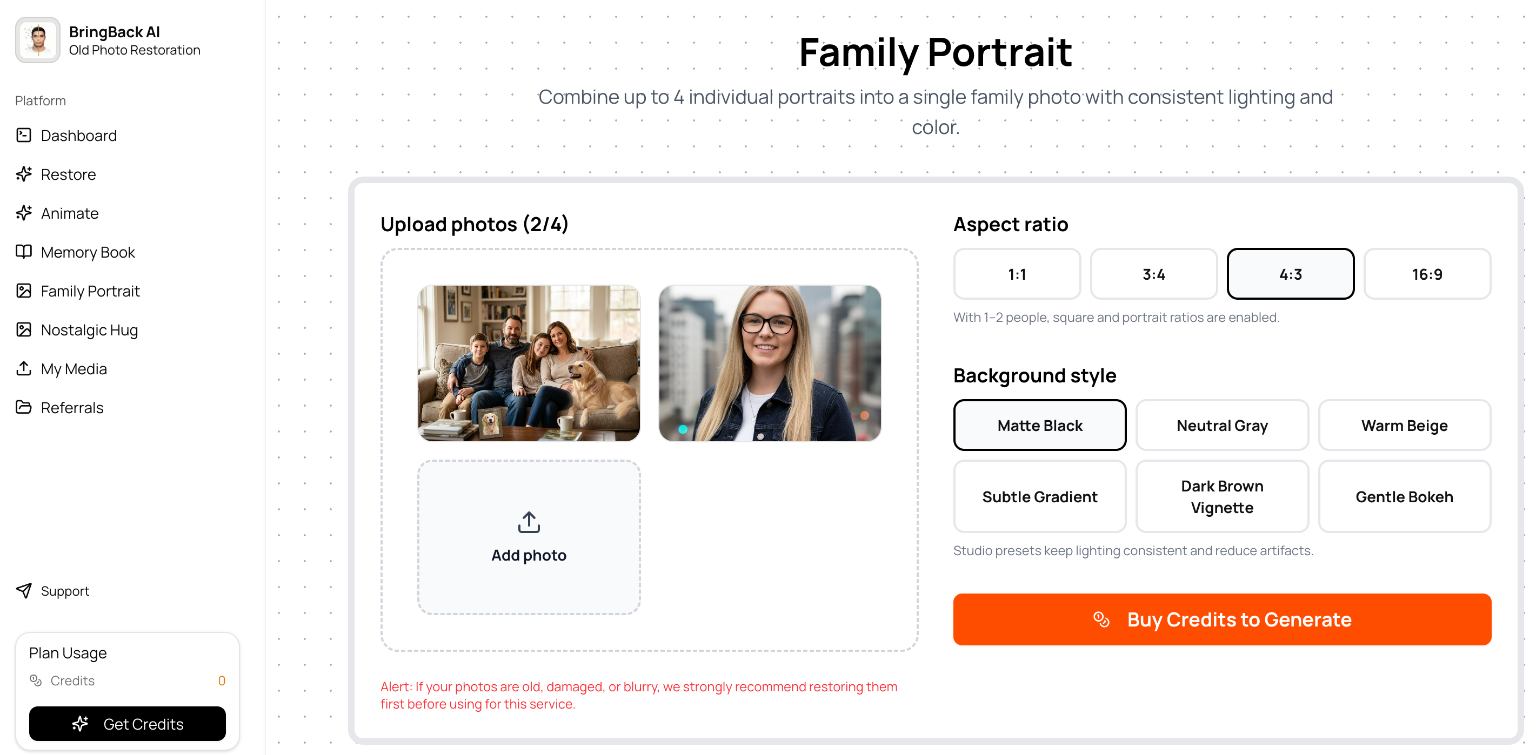
2. BringBack AI (Best for Historic and Sepia Tones)
A platform dedicated entirely to ancestral and vintage photo reconstructions.
- Platform: Web-based.
- Best For: Combining older, historic family archives.
- Pros: Excellent at matching sepia, monochrome, and vintage film aesthetics.
- Cons: The interface is highly automated, leaving you with very few manual options to adjust the final position of the person.
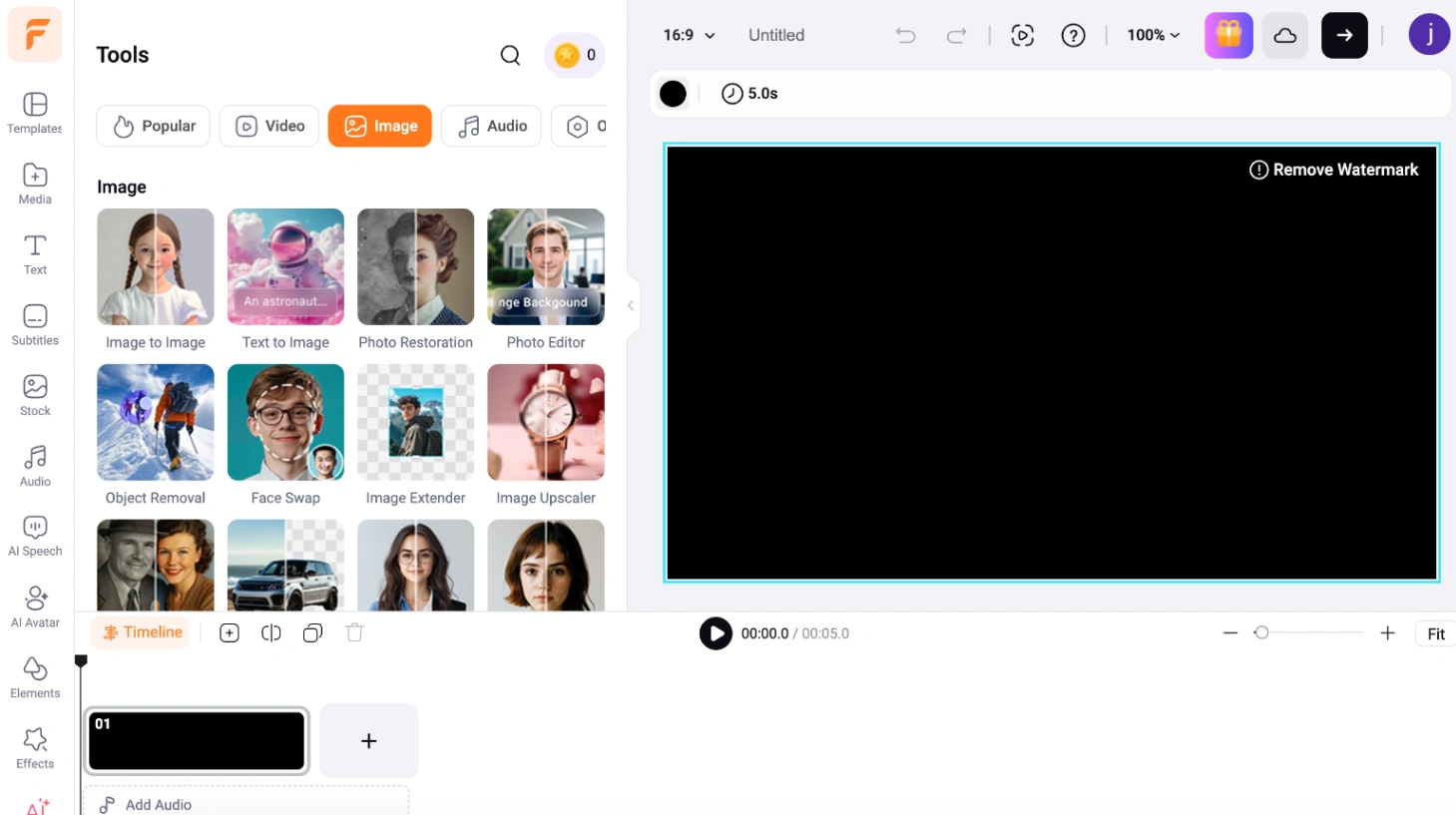
3. FlexClip (Best for Manual Creative Control)
A multi-purpose browser-based editor featuring a robust layer-handling canvas.
- Platform: Web-based.
- Best For: Users who prefer manual positioning and adjustments.
- Pros: The built-in AI background eraser is clean and highly accurate.
- Cons: It does not automatically calculate light directions or generate ambient shadows, meaning you must manually tune the brightness and warmth to match the background.
4. YouCam Perfect (Best Mobile App)
A widely downloaded mobile application for swift portrait retouching.
- Platform: iOS & Android App.
- Best For: Making quick adjustments directly on a smartphone.
- Pros: Very easy finger-brush adjustments and instant filter overlays.
- Cons: It requires downloading a large app, and high-definition exports are locked behind premium subscription walls.
Step-by-Step Guide: How to Blend Your Photos Naturally
If you want a natural, balanced output without the steep learning curve of professional design suites, here is how to execute the process:
Step 1: Upload Photos
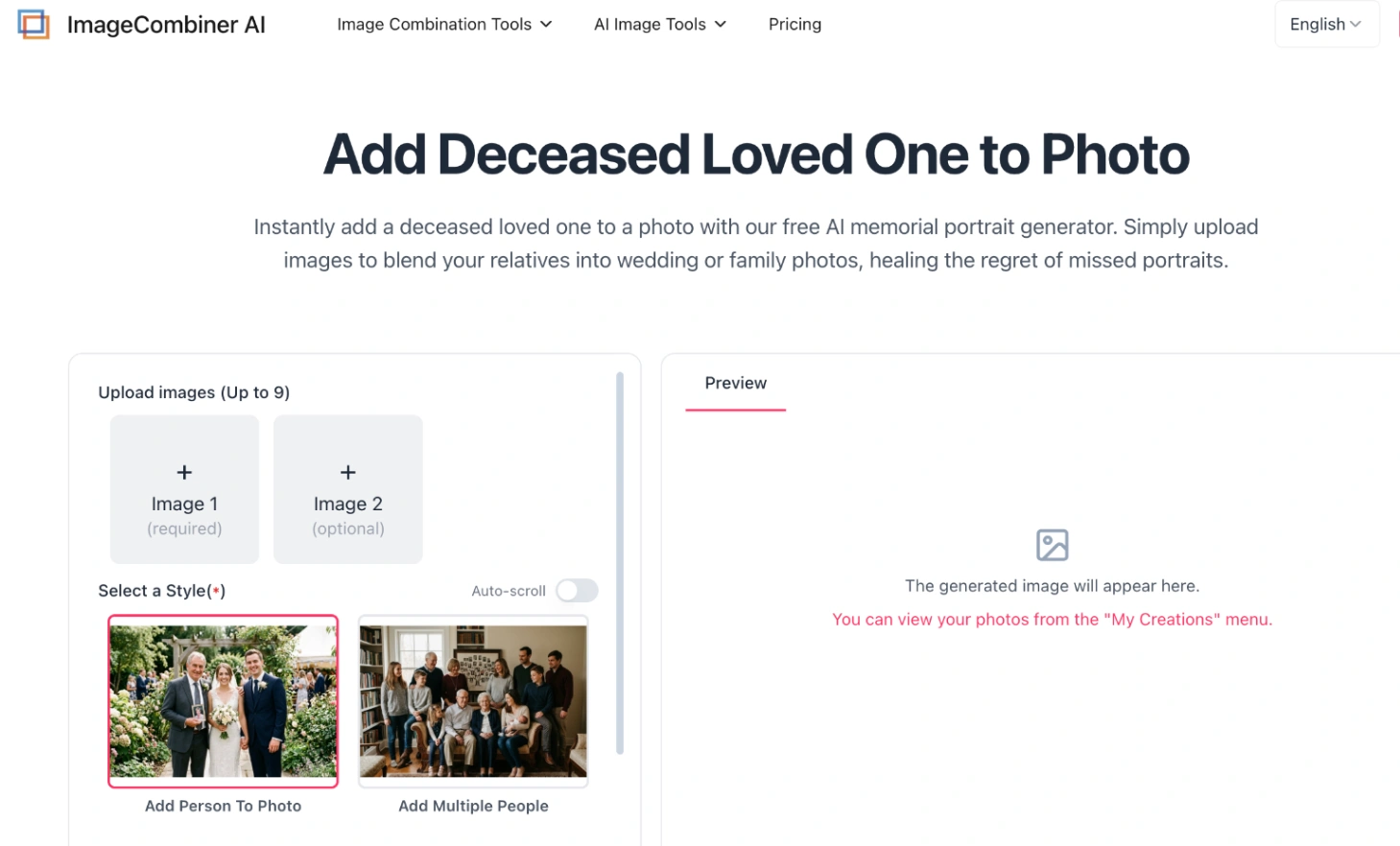
Open the AI memorial portrait generator.
- Upload your primary family gathering photo.
- Upload the best available portrait of your late relative. (Technical Tip: If the old photo has fold lines or heavy scratches across the face, running it through the photo restoration filter first is recommended to clean the facial details).
Step 2: Set a Custom Style
To customize the composition, you can keep the default template to let the engine blend everything automatically, or select a preset from the curated Image Styles menu (such as Studio Portrait for a formal finish, or Vintage Polaroid for a warm, retro feel). For unique layouts or specific poses, simply enter a custom text prompt to describe exactly how you want your loved one merged into the scene.
If your original photo is black and white, you can use the built-in relighting tool, or restore natural skin tones beforehand using the AI image colorizer.
Prompt Example: "Place the grandfather from Image 2 standing naturally behind the couch on the right side, adjusting his skin tone to match the warm living room lighting".
Step 3: Select Resolution and Generate
Click Generate. The AI photo blending engine will automatically handle the background removal, estimate the environmental depth, and generate soft shadows. Once the preview is ready, you can export the completed portrait in 2K or 4K resolution, which keeps the fine details sharp when printed on physical canvas.
Adapting Your Portraits for Sentimental Milestones
AI composition can be tailored to fit several deeply personal scenarios:
- Wedding Milestones: Your wedding day is a major life event where the absence of a passed parent or grandparent is felt deeply. You can use the group portrait generator to include late family members next to the bride and groom, making sure they are still a part of your big day.
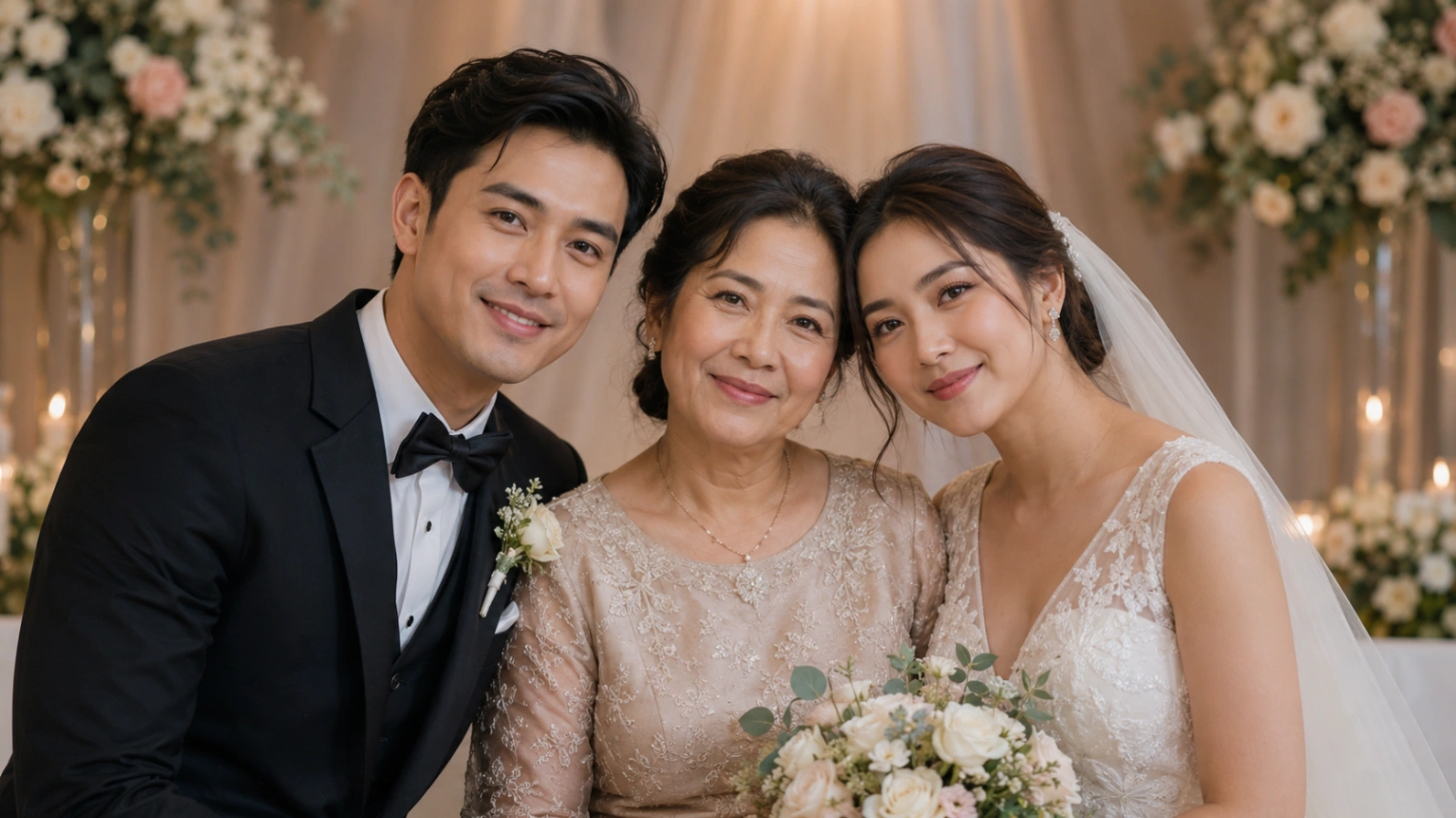
- Honoring a Late Partner: If you want to visualize a quiet, romantic moment with a late partner, you can use the AI couple portrait maker to merge separate selfies into a unified couple portrait, such as sitting together in a cozy setting or walking on a beach.
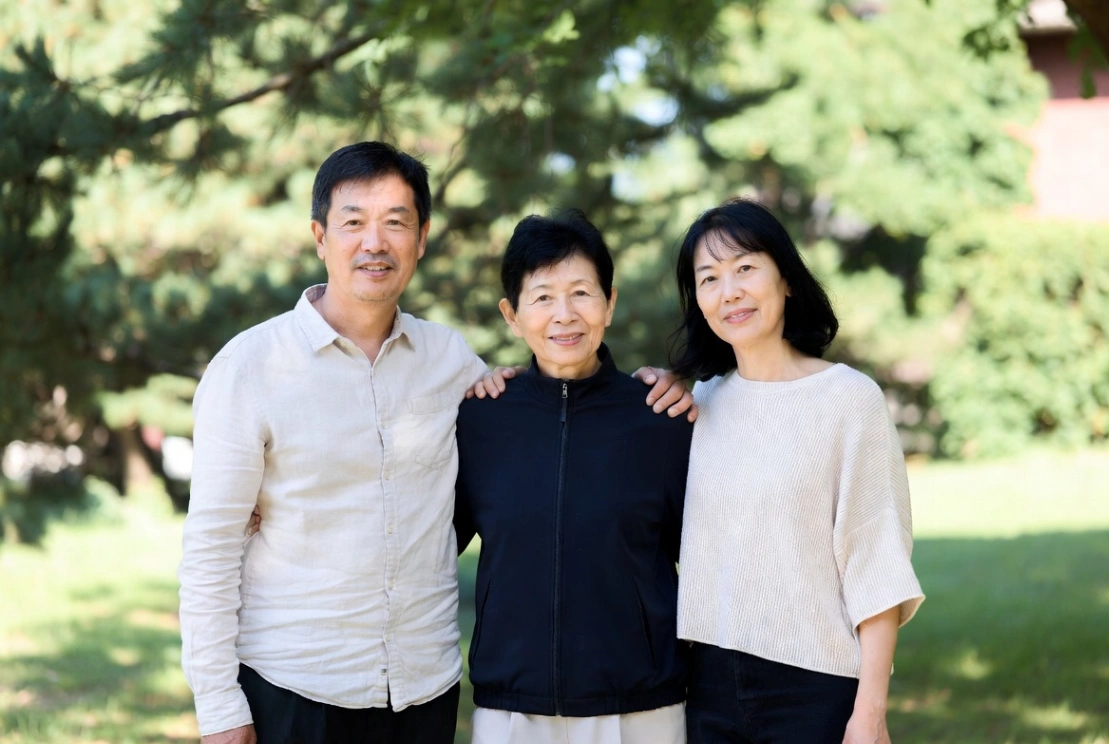
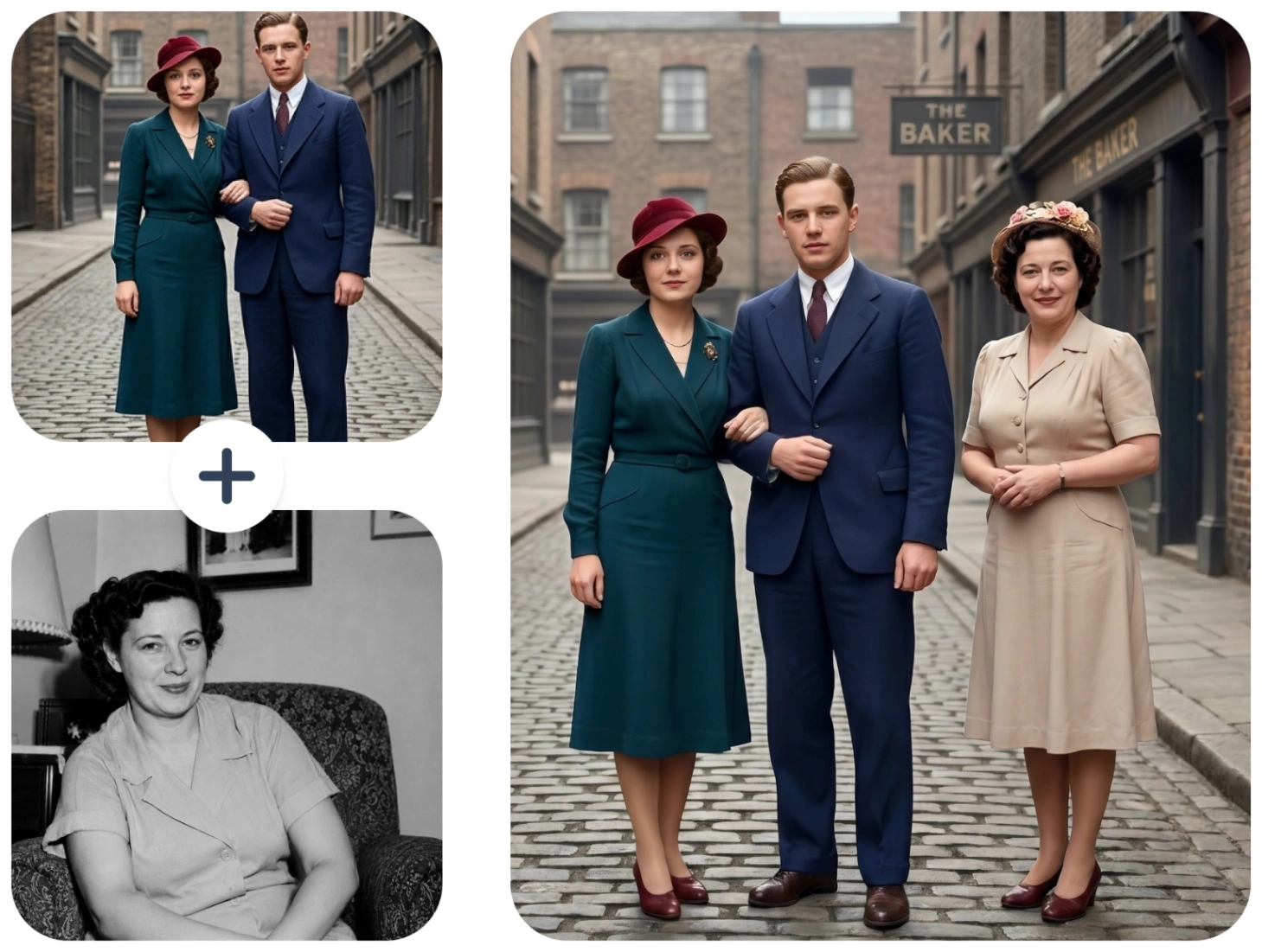
- Connecting the Family Tree: Creating a visual bridge between generations is a beautiful way to celebrate your family’s shared heritage. Even if different generations never had the chance to take a photo together in real life, you can use the two person photo combiner to design a heartwarming portrait of a grandparent alongside their grandchild, creating a priceless keepsake that keeps your family history united.
3 Simple Tips for a Heartwarming Result
To make sure your finished portrait looks completely natural and respectful, here are three simple tips to keep in mind when choosing and combining your photos:
- Try to Match the Camera’s Eye-Level: Take a look at how both photos were taken. If everyone in your family photo is looking slightly down at the device, but your grandfather’s portrait was captured looking up, placing them together will look mismatched. For the most natural look, choose two photos shot from roughly the same eye level.
- Don't Force a Blurry Photo to Look Perfect: If your only picture of a relative is very small, blurry, or scanned from an old paper print, forcing the AI to make them look crystal-clear can make their face look unnatural or unrecognizable. Instead, try choosing an artistic style like Classic Watercolor or Pencil Sketch. It is a beautiful way to blend different photo qualities while creating a gorgeous piece of custom art.
- Decide on the Vibe (Realistic vs. Angelic): Do you want the portrait to look like your relative was physically standing in the room, or would you prefer a softer, more spiritual tribute? If you want a comforting, angelic look, you can slightly lower the transparency of their photo, or type "soft, glowing, angelic presence" into the prompt box to create a peaceful, comforting scene.
While AI cannot replace the moments we missed, I hope this guide helps you visualize and celebrate the family memories you hold dear. Try the tool with your photos to create a comforting tribute.